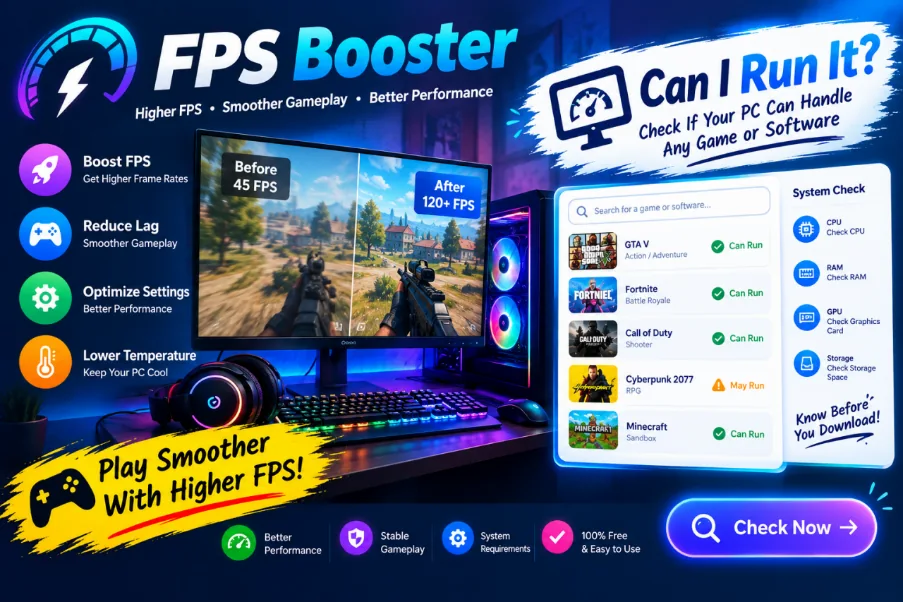
Getting the best experience from PC games involves more than selecting a powerful graphics card. Background applications, outdated drivers, system temperatures, and hardware limitations can all influence gameplay. For gamers who want a convenient way to manage these factors, Smart Game Booster offers several utilities designed specifically for Windows gaming. It combines performance optimization, hardware monitoring, game compatibility checking, and other useful features in one application.
Whether you want to improve gaming responsiveness or find out which titles are suitable for your computer, Smart Game Booster provides tools that can help simplify the process.
Discover the FPS Booster Feature
The FPS Booster functionality is one of the main attractions of Smart Game Booster. It is designed to optimize selected PC resources so that games can operate more efficiently.
Its PC Boost feature focuses on reducing unnecessary background activity, managing selected processes, and cleaning memory resources before gameplay. This can be particularly useful when several applications are competing with a game for available CPU power and RAM.
Another feature worth exploring is Super Boost, which provides GPU and VRAM overclocking options on supported hardware. Users can choose available performance profiles or adjust supported settings according to their requirements.
Smart Game Booster also includes an FPS monitor that displays real-time frame rates through an in-game overlay. Along with FPS information, users can monitor CPU and GPU usage, temperatures, memory consumption, and other hardware statistics.
These tools make it easier to observe performance changes instead of relying on guesswork. Actual FPS improvements depend on the computer’s configuration, game requirements, and existing performance limitations.
How to Use Smart Game Booster to Optimize FPS
Getting started is relatively straightforward. After downloading and installing Smart Game Booster, follow these steps:
Step 1: Open the application. Launch Smart Game Booster and allow it to detect your installed games.
Step 2: Select a game. Choose your preferred title from the available game list or add it manually.
Step 3: Activate PC Boost. Turn on the optimization settings provided by the software to limit unnecessary background activity and free up system resources for gaming.
Step 4: Monitor performance. Use the built-in FPS overlay to observe frame rates, hardware temperatures, and resource consumption.
Step 5: Launch the game. Start playing and compare performance with your previous settings.
This process provides a convenient way to prepare your system without manually adjusting every setting.
Explore the Can I Run It Feature
The Can I run it feature serves an entirely different purpose. Instead of optimizing your computer, it helps determine whether your existing hardware meets the requirements of a particular game.
Before purchasing or installing a demanding title, users can search for its name through Smart Game Booster’s compatibility section. The utility compares available computer specifications with the game’s minimum and recommended requirements.
This can help answer questions such as whether your graphics card is powerful enough, whether your processor supports the game, or whether your computer has sufficient memory.
The feature also helps users explore compatible games based on their existing hardware. This is especially useful for people who do not want to spend money on games their computers may struggle to run.
It is important to remember that meeting recommended requirements does not guarantee a particular FPS. Actual performance can vary with graphics settings, resolution, cooling, and game optimization.
More Than a Basic Game Optimization Tool
Smart Game Booster brings additional utilities together to support everyday PC gaming.
The Performance section offers several useful tools, including removing unwanted files, optimizing system settings, updating graphics and audio drivers, and defragmenting game files on compatible drives.
The hardware monitoring functionality is another useful addition. Gamers can monitor system temperatures and resource consumption during gameplay to spot possible performance issues more easily.
The software also offers network acceleration features through dedicated gaming routes, helping supported users work toward a more stable online gaming connection.
Is Smart Game Booster Worth Trying?
For gamers who prefer having several optimization utilities in one place, Smart Game Booster is worth exploring. Its FPS optimization options and separate game compatibility checker cover two different needs: preparing a PC for gaming and finding games that match its hardware.
The software offers a free edition alongside paid subscriptions with additional capabilities. Available features depend on the selected edition, so checking the latest plan details before upgrading is recommended.
I also suggest checking the optimization and overclocking options carefully before making any changes. Hardware compatibility, cooling, and system stability should always be considered.
Final Verdict
Smart Game Booster provides a convenient collection of features for Windows gamers. Its FPS Booster functionality focuses on system optimization and real-time performance monitoring, while Can I run it helps users evaluate game compatibility before installation.
These features serve different gaming needs, making the software useful in various situations. Whether you’re getting your PC ready for a demanding game or looking for titles compatible with your hardware, Smart Game Booster provides helpful tools to support better gaming choices.