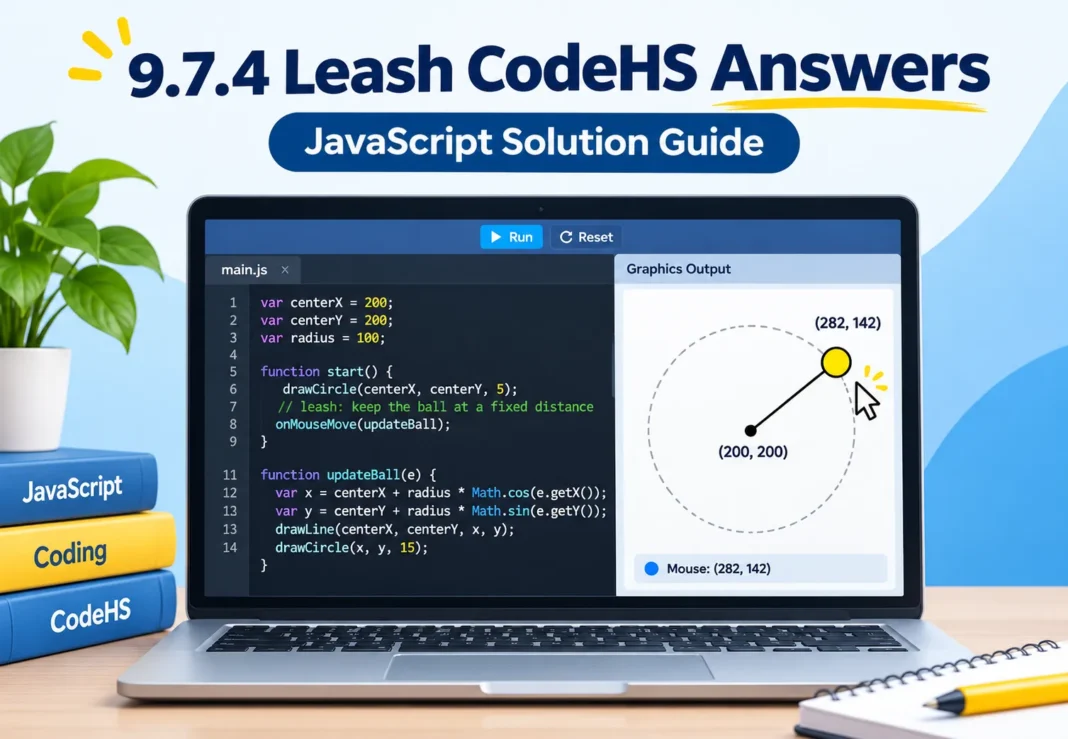
The 9.7.4 Leash CodeHS Answers refer to a JavaScript graphics exercise in which students create a moving ball connected to a fixed point by a line. The main objective is to make the ball follow the mouse pointer while keeping one endpoint of the line anchored at the center of the graphics canvas.
Students use the CodeHS graphics library, Circle and Line objects, mouse events, and coordinate methods to complete the activity. Understanding how these elements work together helps you solve the exercise and avoid common coding mistakes.
What Is the 9.7.4 Leash Exercise in CodeHS?
The Leash exercise introduces students to interactive graphics programming through a simple visual activity. Instead of displaying text or calculating numbers, the program creates graphical objects that respond to mouse movement.
The exercise generally requires two objects: a circle representing a ball and a straight line representing its leash. Both objects begin at the center of the canvas, and the ball moves whenever the user moves the mouse.
The line connects the fixed center point to the moving ball. Its starting point remains unchanged, while its endpoint follows the ball’s center. This creates the appearance of a ball attached to a leash.
9.7.4 Leash CodeHS Answers: Working JavaScript Code
The following example demonstrates the central logic of the exercise using CodeHS graphics methods. It creates the ball and leash once, then updates their positions whenever the mouse moves.
var BALL_RADIUS = 30;
var ball;
var leash;
function start() {
var centerX = getWidth() / 2;
var centerY = getHeight() / 2;
leash = new Line(centerX, centerY, centerX, centerY);
add(leash);
ball = new Circle(BALL_RADIUS);
ball.setPosition(centerX, centerY);
ball.setColor(Color.yellow);
add(ball);
mouseMoveMethod(moveLeash);
}
function moveLeash(e) {
var mouseX = e.getX();
var mouseY = e.getY();
leash.setEndpoint(mouseX, mouseY);
ball.setPosition(mouseX, mouseY);
}
Important: This is a working example of the commonly described Leash graphics behavior, not a guaranteed copy of every course version’s official answer key. Check your CodeHS assignment instructions for any specific radius, color, variable names, or additional requirements before submitting.
Understanding How the JavaScript Solution Works
1. Declaring the Global Variables
The program begins with three variables:
var BALL_RADIUS = 30;
var ball;
var leash;
The BALL_RADIUS variable controls the size of the circle. The ball and leash variables store references to the graphical objects created later in the program.
These variables appear outside the functions because both start() and moveLeash() need access to the same objects. If you declare the ball only inside start(), the separate mouse event function cannot directly use that local variable.
2. Finding the Center of the Canvas
The program calculates the center using two expressions:
var centerX = getWidth() / 2;
var centerY = getHeight() / 2;
The getWidth() method returns the canvas width, while getHeight() returns its height. Dividing each measurement by two gives the horizontal and vertical coordinates of the center.
For example, a canvas measuring 400 pixels wide and 500 pixels high has a center at (200, 250). Calculating these values dynamically makes the program work with different canvas dimensions.
3. Creating the Leash Line
The next step creates the line:
leash = new Line(centerX, centerY, centerX, centerY);
add(leash);
The Line constructor accepts four coordinates representing its starting and ending points. Both endpoints initially use the center coordinates, so the line begins with zero length.
The add() method places the line on the graphics canvas. When the mouse moves, the program changes only the second endpoint, keeping the original anchor in place.
4. Creating the Moving Ball
The circle represents the ball attached to the leash.
ball = new Circle(BALL_RADIUS);
ball.setPosition(centerX, centerY);
ball.setColor(Color.yellow);
add(ball);
The Circle constructor creates a circle using the radius stored in BALL_RADIUS. The setPosition() method places its center at the middle of the canvas, while setColor() changes its appearance.
The program adds the ball after the line. This drawing order helps the circle appear above the line when both objects overlap.
5. Registering the Mouse Movement Event
The following statement connects mouse movement to the movement function:
mouseMoveMethod(moveLeash);
The mouseMoveMethod() function registers a callback that CodeHS executes when the mouse moves over the graphics canvas. The program does not need a continuous loop to check the cursor’s position.
Notice that moveLeash appears without parentheses. Writing moveLeash() would call the function immediately instead of passing its reference to the event handler.
6. Updating the Ball and Leash
Inside moveLeash(), the event object provides the current mouse coordinates.
var mouseX = e.getX();
var mouseY = e.getY();
leash.setEndpoint(mouseX, mouseY);
ball.setPosition(mouseX, mouseY);
The getX() method retrieves the horizontal coordinate, while getY() retrieves the vertical coordinate. The program sends these same values to the line and circle.
The setEndpoint() method changes the moving endpoint of the leash. Meanwhile, setPosition() moves the center of the ball, keeping both graphical objects connected.
Important CodeHS Methods Used in the Leash Exercise
Understanding the purpose of each method makes it easier to troubleshoot the program and complete similar JavaScript graphics activities.
| Method or object | Purpose |
| Circle(radius) | Creates the ball |
| Line(x1, y1, x2, y2) | Creates the leash |
| getWidth() | Returns canvas width |
| getHeight() | Returns canvas height |
| setPosition(x, y) | Changes the circle’s center |
| setEndpoint(x, y) | Changes the line’s endpoint |
| mouseMoveMethod() | Registers mouse movement |
| e.getX() | Retrieves mouse X coordinate |
| e.getY() | Retrieves mouse Y coordinate |
| add(object) | Displays an object on the canvas |
One particularly important distinction is the difference between setPosition() and setEndpoint(). The first changes the line’s starting point, while the second changes its ending point. Since the leash needs a stationary anchor, setEndpoint() provides the appropriate update.
Common 9.7.4 Leash CodeHS Problems and Their Solutions
Why Does the Ball Not Move?
A ball that stays in the center usually indicates an issue with event registration or the movement function. Check whether mouseMoveMethod(moveLeash) appears inside start() and whether the callback receives the event parameter.
Also check the spelling and capitalization of your method names. JavaScript is case-sensitive, so incorrect capitalization can prevent the program from working.
Why Does the Line Not Follow the Ball?
This problem occurs when the movement function updates the circle but does not update the line. Both objects must receive the same mouse coordinates whenever the pointer moves.
Use leash.setEndpoint(mouseX, mouseY) alongside ball.setPosition(mouseX, mouseY). This keeps the moving endpoint connected to the center of the circle.
Why Do Multiple Circles Appear?
Creating a new Circle inside the mouse event function can add another circle every time the pointer moves. This creates unnecessary graphical objects and makes the program behave incorrectly.
Create the circle once inside start() and store it in the global ball variable. Then update the existing circle with setPosition() whenever the mouse moves.
Why Does the Entire Line Move?
The move() method shifts the complete line, including both endpoints. That behavior changes the fixed anchor and does not match the intended Leash exercise.
Use setEndpoint() to change only the moving endpoint. Keep the original center coordinates unchanged throughout the program.
Why Does the Line Cover the Ball?
Graphics drawing order determines which object appears above another. If the line appears over the circle, check the order in which you add the objects.
Add the line first and the ball second. You can also adjust graphics layers when working with more advanced CodeHS projects.
How to Test Your 9.7.4 Leash Program
Running the program without an error does not automatically mean the exercise works correctly. You should test the actual movement and connection between both graphical objects.
Start by checking that the ball and line begin at the center of the canvas. Then move the mouse toward the right, left, top, and bottom to see whether the ball follows the pointer.
Next, move the mouse diagonally toward each corner. The line should change its direction and length while its starting point remains fixed. Finally, move the cursor back toward the center and confirm that the visible line becomes shorter.
If any part behaves incorrectly, check the mouse event registration, coordinate values, and endpoint update before rewriting the entire program.
What Does the Leash Exercise Teach You About JavaScript?
The Leash activity teaches several programming concepts that appear in interactive applications and games.
First, it introduces event-driven programming, where a program responds to user actions instead of following only a fixed sequence of instructions. The mouse movement callback demonstrates how JavaScript can react to changes in user input.
Second, it develops coordinate-based graphics skills. Students learn how horizontal and vertical positions control the movement of objects on a digital canvas.
Finally, it introduces object references and state updates. Creating a graphical object once and modifying its existing position is more efficient than repeatedly creating new objects whenever an event occurs.
Final Thoughts
The 9.7.4 Leash CodeHS exercise becomes easier when you understand how a fixed line endpoint and a moving circle work together. The main solution requires creating two graphical objects, registering a mouse movement callback, and updating both objects with matching coordinates.
Instead of memorizing the JavaScript code, focus on understanding the purpose of each method and how the mouse coordinates control the graphics. These skills provide a useful foundation for more advanced JavaScript activities involving animations, interactive applications, and game development.
Frequently Asked Questions
1. What is the answer to 9.7.4 Leash on CodeHS?
The solution creates a Circle and Line, keeps one endpoint fixed at the canvas center, and updates the ball and line endpoint whenever the mouse moves.
2. What programming language does 9.7.4 Leash use?
The commonly described graphics exercise uses JavaScript and the CodeHS graphics library to create and control interactive graphical objects.
3. What does mouseMoveMethod() do in CodeHS?
The mouseMoveMethod() function registers a callback that executes when the mouse moves over the graphics canvas, providing updated pointer coordinates.
4. Why does my CodeHS Leash line not move?
Your line may not move because the event handler does not update its endpoint, so check that setEndpoint() receives the current mouse coordinates.
5. Why should I declare the ball variable outside start()?
Declaring ball outside start() allows both the initialization function and mouse movement callback to access and update the same Circle object.
6. Does the 9.7.4 Leash exercise require a loop?
No, the basic mouse-following behavior uses an event callback that updates the graphics whenever CodeHS detects mouse movement.
7. Is 4.7.4 Leash the same as 9.7.4 Leash?
Some older course discussions use 4.7.4 for a similar graphics activity, but you should compare the actual assignment instructions before reusing its solution.